
Control a Light
Toggle a smart light from an LVGL button - with state feedback.
The pattern - same for any actuator
User taps widget
on_click / on_change
homeassistant.service
calls HA service
HA state → widget
sync back via binary_sensor
Design a switch or button in the designer
Place a Switch widget on your canvas. You'll find it under INPUT in the left widget panel. The switch is ideal for on/off controls - it has a built-in checked/unchecked state that maps perfectly to a light.
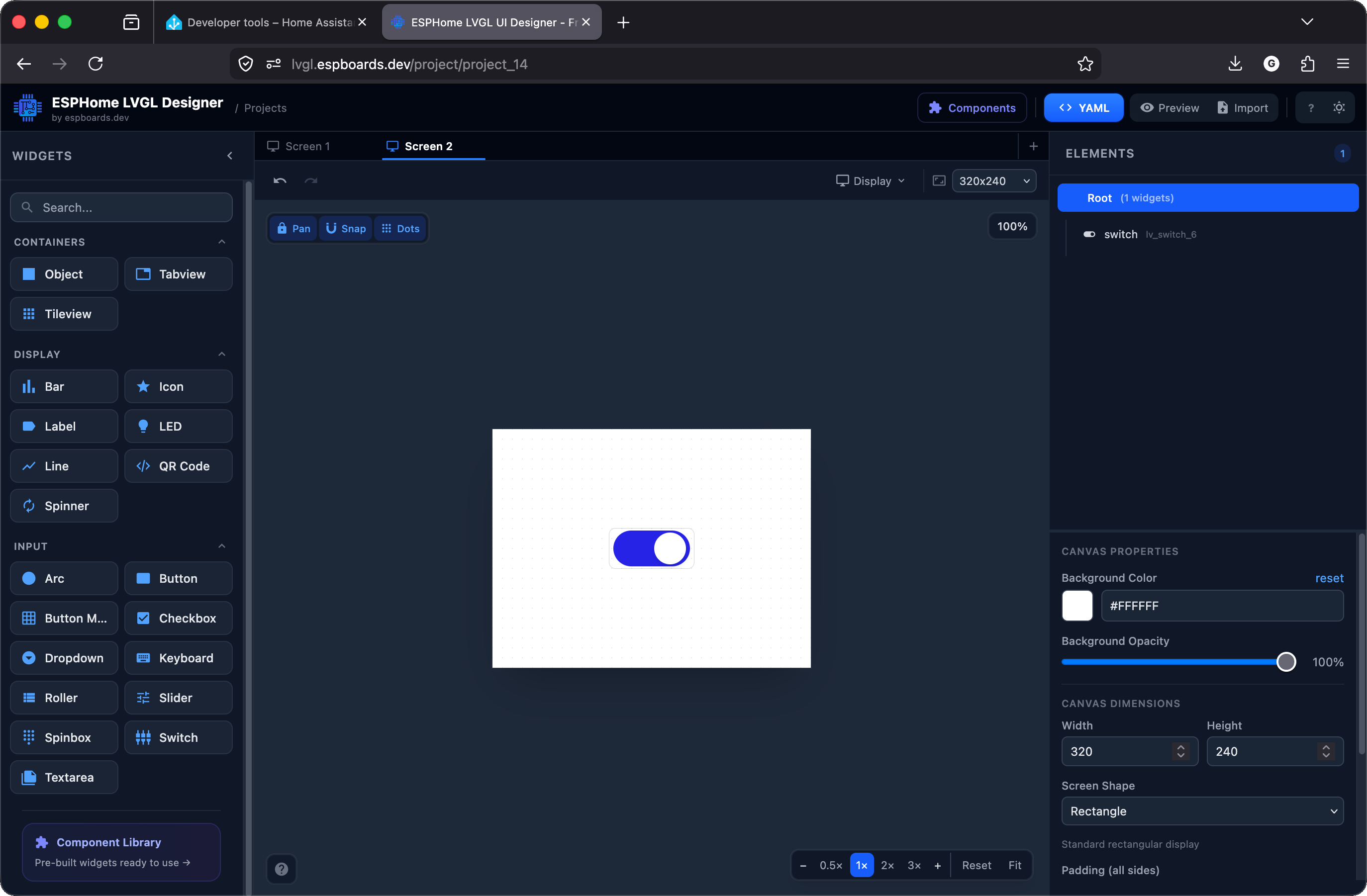
The switch widget in the canvas (the green toggle). The right panel shows its properties - note the id field. You'll reference this ID in your YAML to wire up the HA connection.
# Your LVGL switch widget (from the designer)
# The important parts: id + on_change trigger

lvgl:
  pages:
    - id: canvas_2
      bg_color: 0xFFFFFF
      pad_all: 0
      widgets:
        - switch:
            id: light_sw
            x: 118
            y: 100
            width: 85
            height: 40
            state:
              checked: true
            bg_color: 0x4B5563
            bg_opa: 0%
            indicator:
              bg_color: 0x2623E7
              bg_opa: 0%
            knob:
              bg_color: 0xFFFFFF
              border_color: 0x9CA3AF
              border_width: 1
Find your light's entity ID
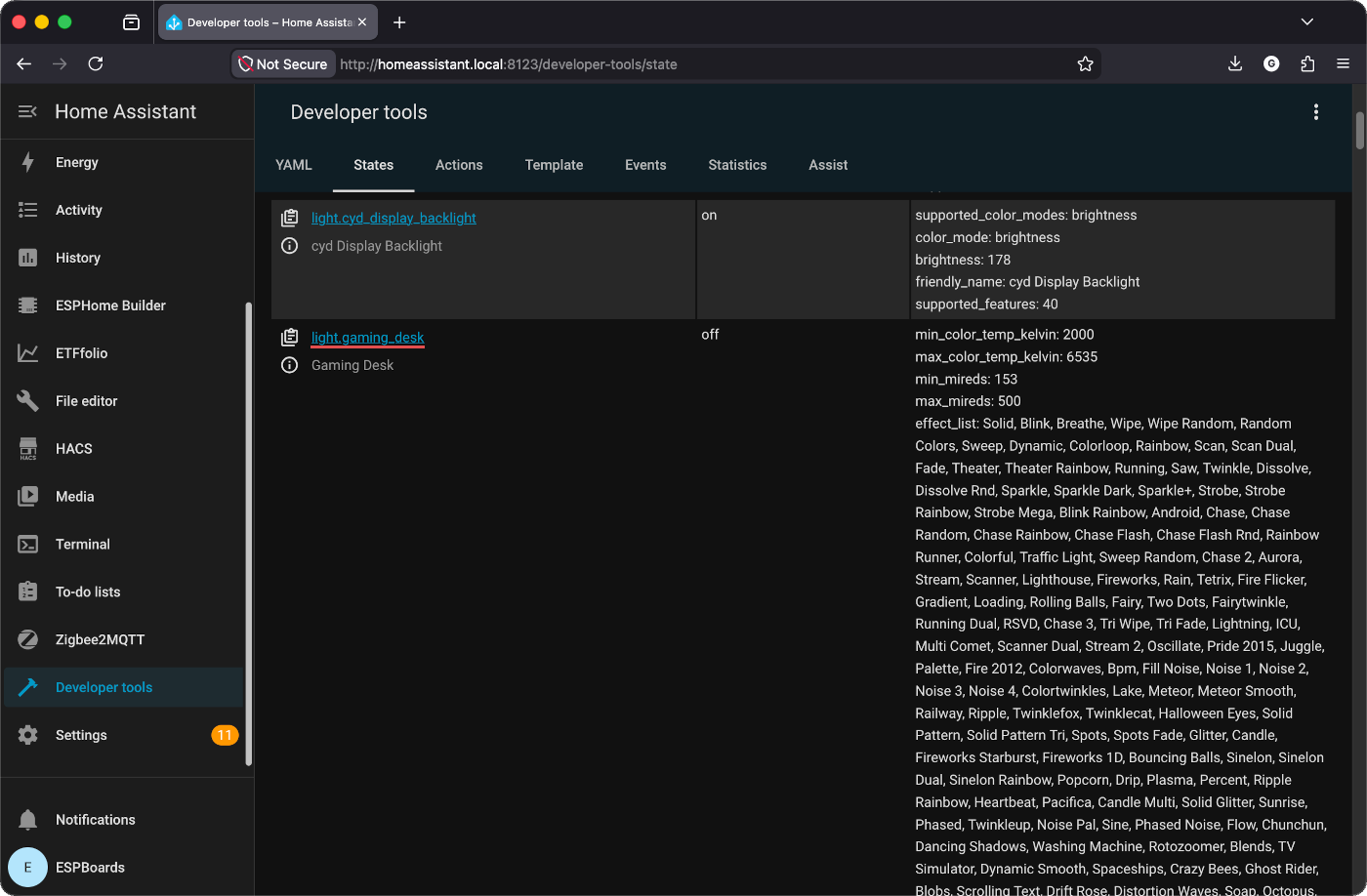
Same as the sensor page: Developer Tools → States in HA, search for your light. The entity ID looks like light.living_room.
Wire up the two-way connection
This is a two-way connection - not just "tap → toggle." You also need the light's state to sync back to the switch so it stays in sync when someone uses the HA app, voice, or another control.
LVGL Switch
HA Light
Part 1 - Display → Home Assistant
Add on_change to your switch widget. When the user taps it, ESPHome calls light.toggle in Home Assistant.
# PART 1: User taps switch → toggle the HA light
# Add on_change to your switch widget inside the lvgl: block

lvgl:
  pages:
    - id: canvas_2
      bg_color: 0xFFFFFF
      pad_all: 0
      widgets:
        - switch:
            id: light_sw
            x: 118
            y: 100
            width: 85
            height: 40
            state:
              checked: true
            bg_color: 0x4B5563
            bg_opa: 0%
            indicator:
              bg_color: 0x2623E7
              bg_opa: 0%
            knob:
              bg_color: 0xFFFFFF
              border_color: 0x9CA3AF
              border_width: 1
            on_change:
              then:
                - homeassistant.service:
                    service: light.toggle
                    data:
                      entity_id: light.living_room
Part 2 - Home Assistant → Display
Add this binary_sensor: block at root level (same level as esphome:). It subscribes to the light's on/off state and keeps the LVGL switch in sync - so when someone toggles the light from the HA app, voice assistant, or another switch, your display updates too.
# PART 2: HA light changes → sync the switch
# Add this at root level (same level as esphome: / wifi:)

binary_sensor:
  - platform: homeassistant
    id: ha_light_state
    entity_id: light.living_room
    on_state:
      then:
        - if:
            condition:
              binary_sensor.is_on: ha_light_state
            then:
              - lvgl.widget.update:
                  id: light_sw
                  state:
                    checked: true
            else:
              - lvgl.widget.update:
                  id: light_sw
                  state:
checked: falseon_changeUser taps the switch → calls light.toggle in HAbinary_sensorSubscribes to the light's on/off state from HAon_stateHA light changes → updates the LVGL switch's checked statehomeassistant.service calls silently do nothing. See step 4 on the hub page →on_change trigger goes on the LVGL widget inside the lvgl: block. The binary_sensor: block goes at root level. They're separate - one sends commands, the other receives state. Using a button instead of a switch?
A button uses on_click instead of on_change. It doesn't have a checked state, so there's nothing to sync back - simpler but no visual feedback.
# Alternative: use a button instead of a switch
# Same concept - on_click instead of on_change

lvgl:
  pages:
    - id: main_page
      widgets:
        - button:
            id: light_btn
            align: CENTER
            width: 120
            height: 50
            widgets:
              - label:
                  text: "Toggle Light"
                  align: CENTER
            on_click:
              then:
                - homeassistant.service:
                    service: light.toggle
                    data:
                      entity_id: light.living_room
Bonus: change label color based on light state
Add a status label next to the switch. Update its text and color when the light changes:
# Bonus: change the switch/button color based on light state

binary_sensor:
  - platform: homeassistant
    id: ha_light_state
    entity_id: light.living_room
    on_state:
      then:
        - if:
            condition:
              binary_sensor.is_on: ha_light_state
            then:
              - lvgl.widget.update:
                  id: light_sw
                  state:
                    checked: true
              - lvgl.widget.update:
                  id: status_lbl
                  text_color: 0x10B981
              - lvgl.label.update:
                  id: status_lbl
                  text: "ON"
            else:
              - lvgl.widget.update:
                  id: light_sw
                  state:
                    checked: false
              - lvgl.widget.update:
                  id: status_lbl
                  text_color: 0x6B7280
              - lvgl.label.update:
                  id: status_lbl
                  text: "OFF"
Flash and tap
Flash OTA. Tap the switch on your display - the light should toggle. Turn the light off from the HA app - the switch on your display should update too.
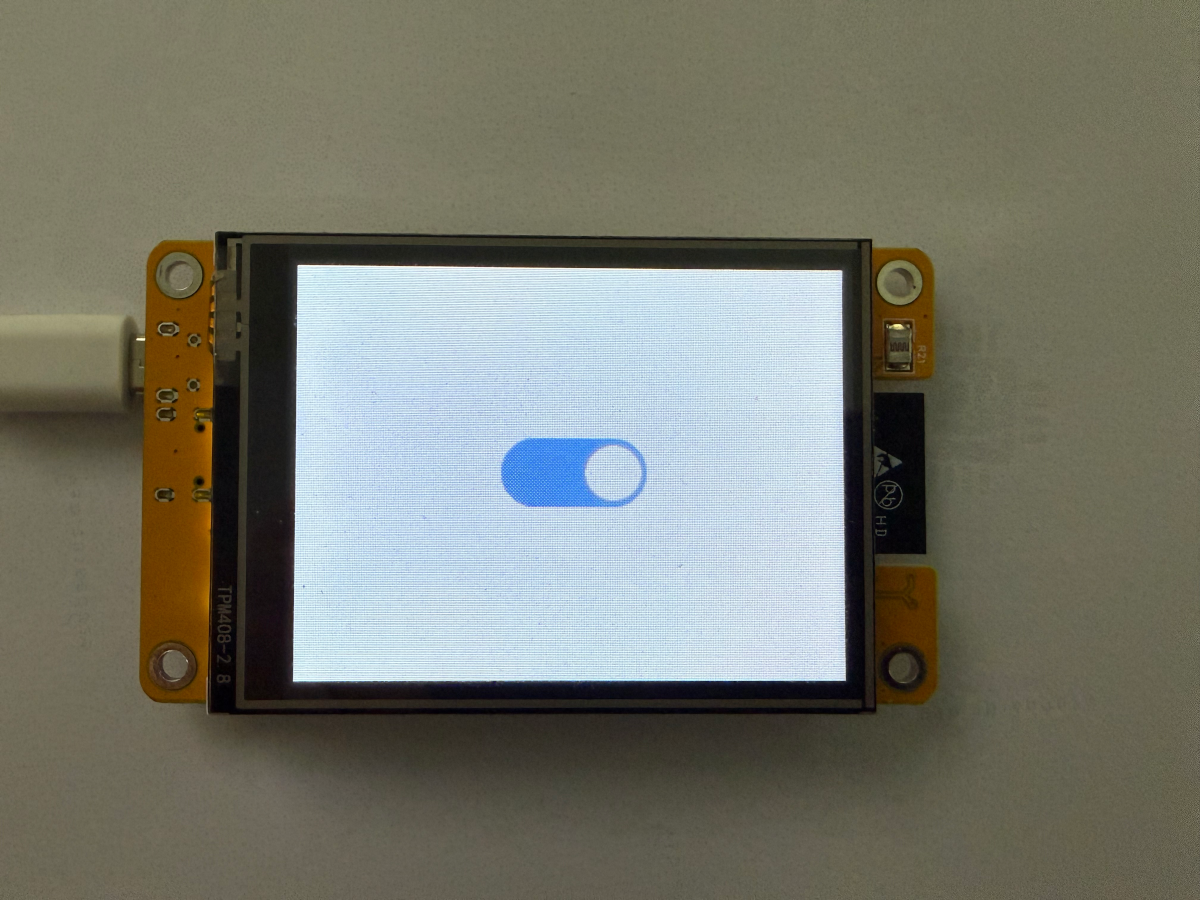
[D][lvgl:switch]: on_change fired
[D][homeassistant.service]: light.toggle
entity_id: light.living_room
[I][binary_sensor]: light.living_room → ON
[D][lvgl]: switch checked: true
Checkpoint - Does tapping the switch toggle the light - and does the switch update when you control the light from elsewhere?
If both directions work - you've got full two-way control. The same pattern works for any HA service: fans, covers, media players.