
Connect to Home Assistant
Wire your LVGL UI to Home Assistant entities for live data and two-way control.
0. Pair ESPHome with Home Assistant
One-time setup - takes under a minute
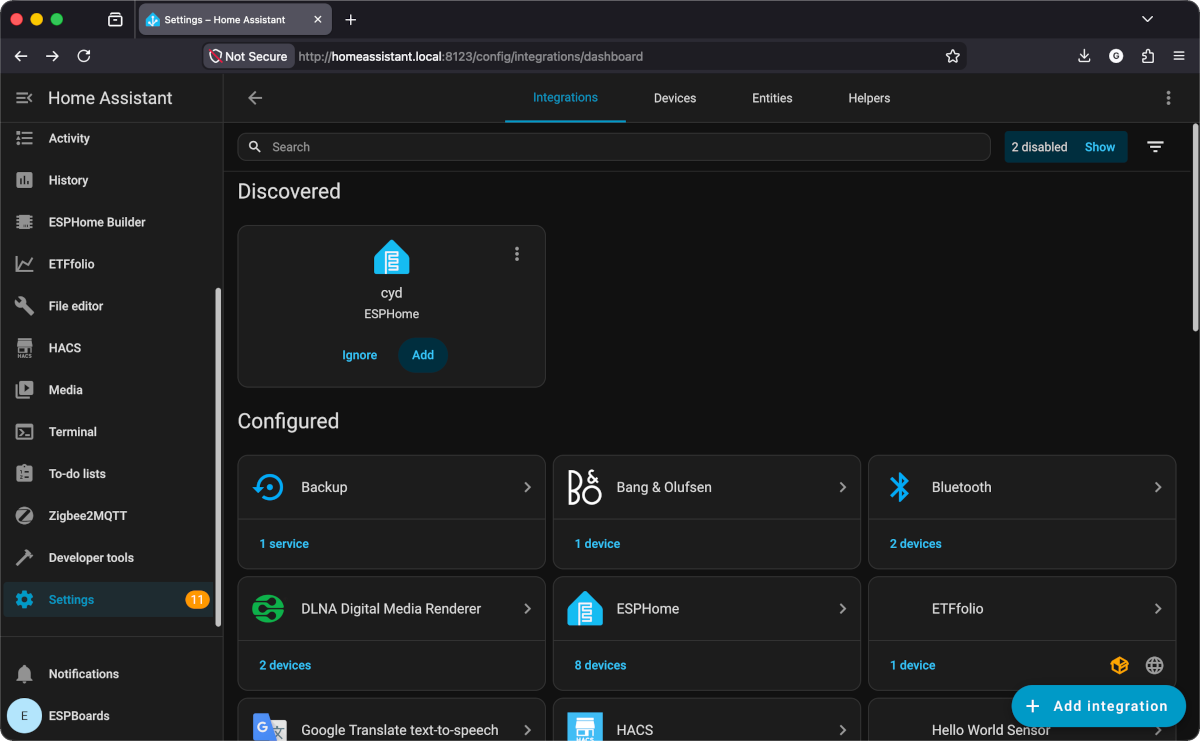
Open Settings → Devices & Services
Your ESPHome device should appear under "Discovered" at the top of the page. Click Add.
Enter the API encryption key
Home Assistant asks for the encryption key from your device config. If you used the ESPHome dashboard wizard in Chapter 2, it was auto-generated. Find it in your YAML:
# Find this in your device YAML (ESPHome dashboard → EDIT)
api:
  encryption:
    key: "gVegxdSrJJpwshDsExtKqozXoUqQBi7SlBzP7P+NoY4="
Copy the value from key: "...", paste it in the HA dialog, click Submit.
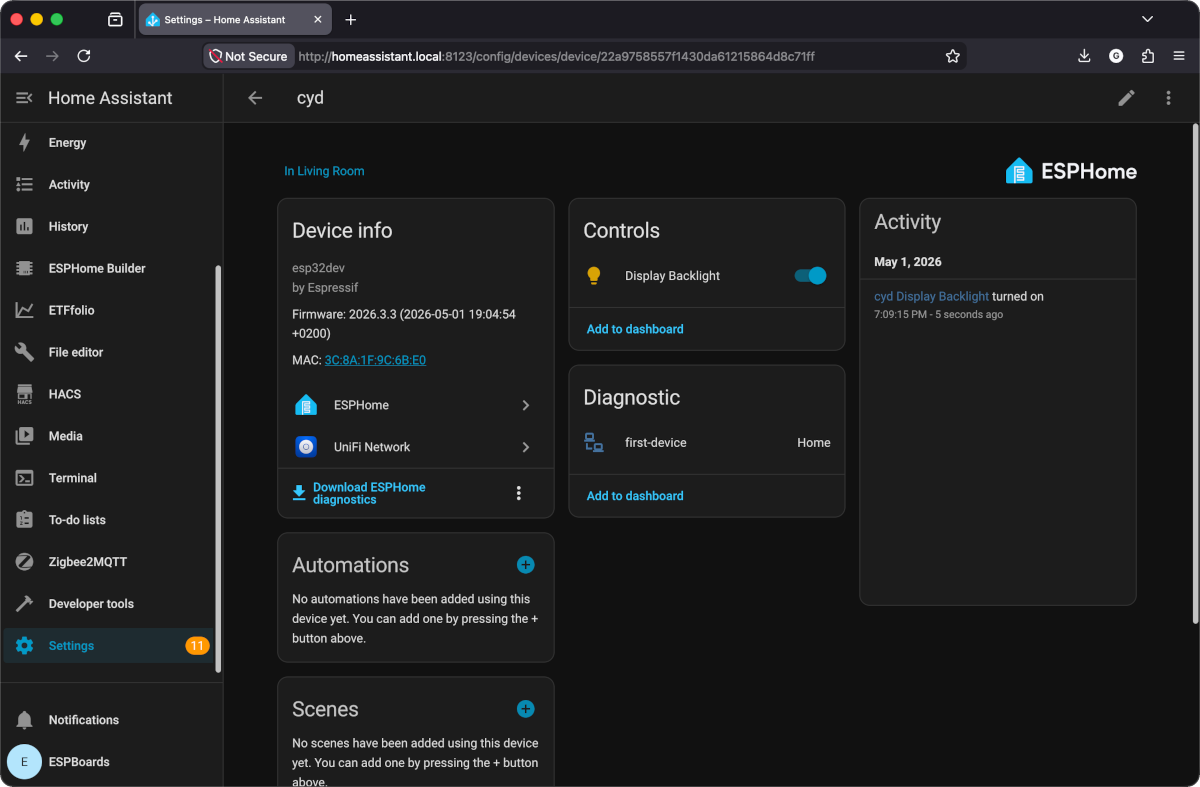
Your device appears in Home Assistant
After submitting the key, your ESPHome device shows up as a full HA device - with device info, controls (like the display backlight), and diagnostic entities. You can click "Add to dashboard" to put controls on your HA dashboard.
Allow the device to perform HA actions
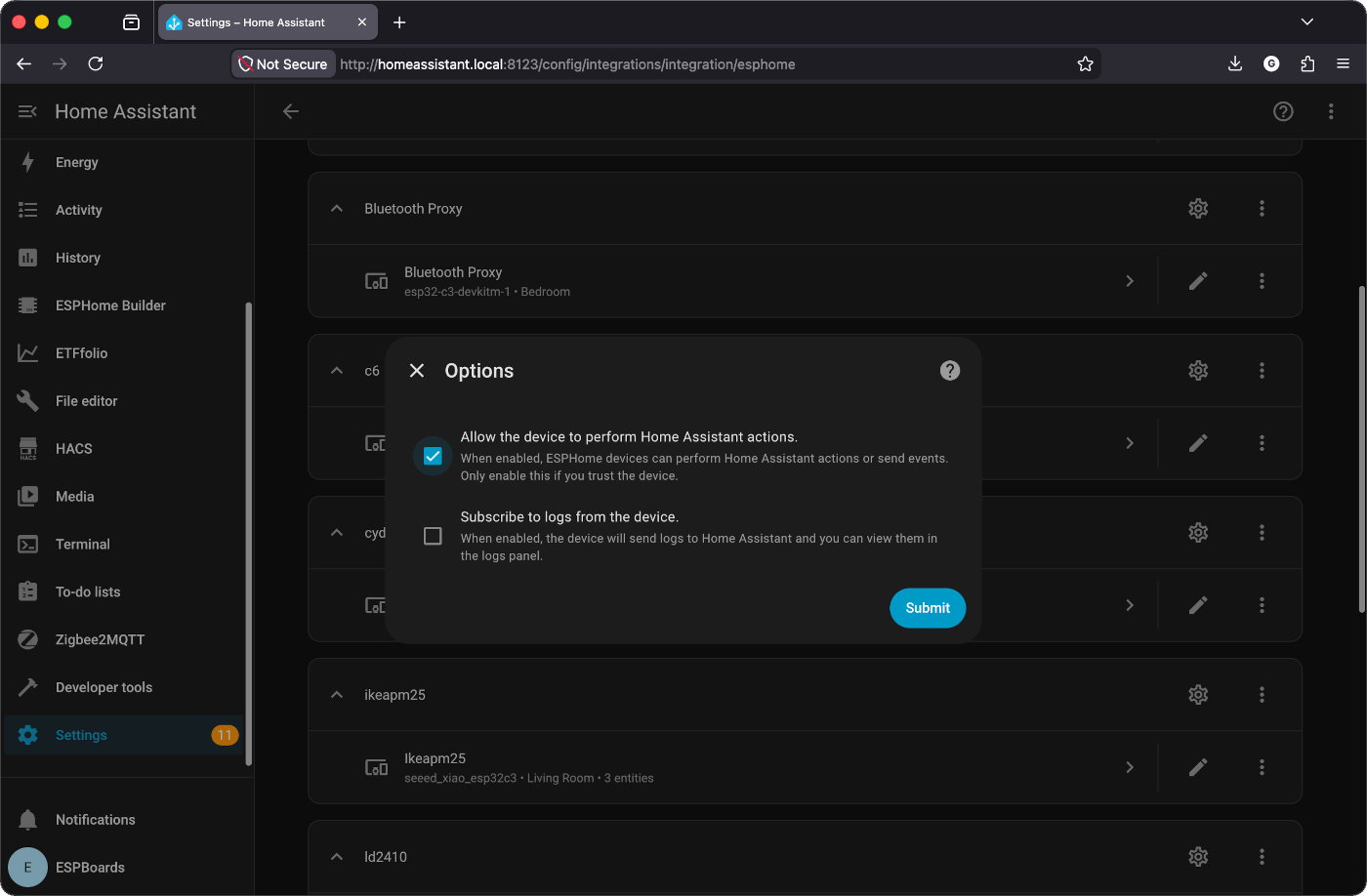
This step is required if you want to control HA entities (lights, switches, etc.) from your display. Without it, homeassistant.service calls will silently fail.
- Go to Settings → Devices & Services → ESPHome
- Find your device and click the ⚙ gear icon (Configure)
- Check "Allow the device to perform Home Assistant actions"
- Click Submit
How it fits together
Home Assistant
Entities · Automations
ESP32
ESPHome firmware
Display
Your designed UI
Now pick an entity scenario
Show a Sensor
5 minPull a Home Assistant entity (temperature, humidity, anything) and update an LVGL label or arc with its value.
Control a Light
5 minWire an LVGL switch or button to a Home Assistant light. Tap to toggle, with two-way state sync.
Slider Dimmer
5 minUse an LVGL slider to control brightness - drag to dim, auto-sync when changed externally.